

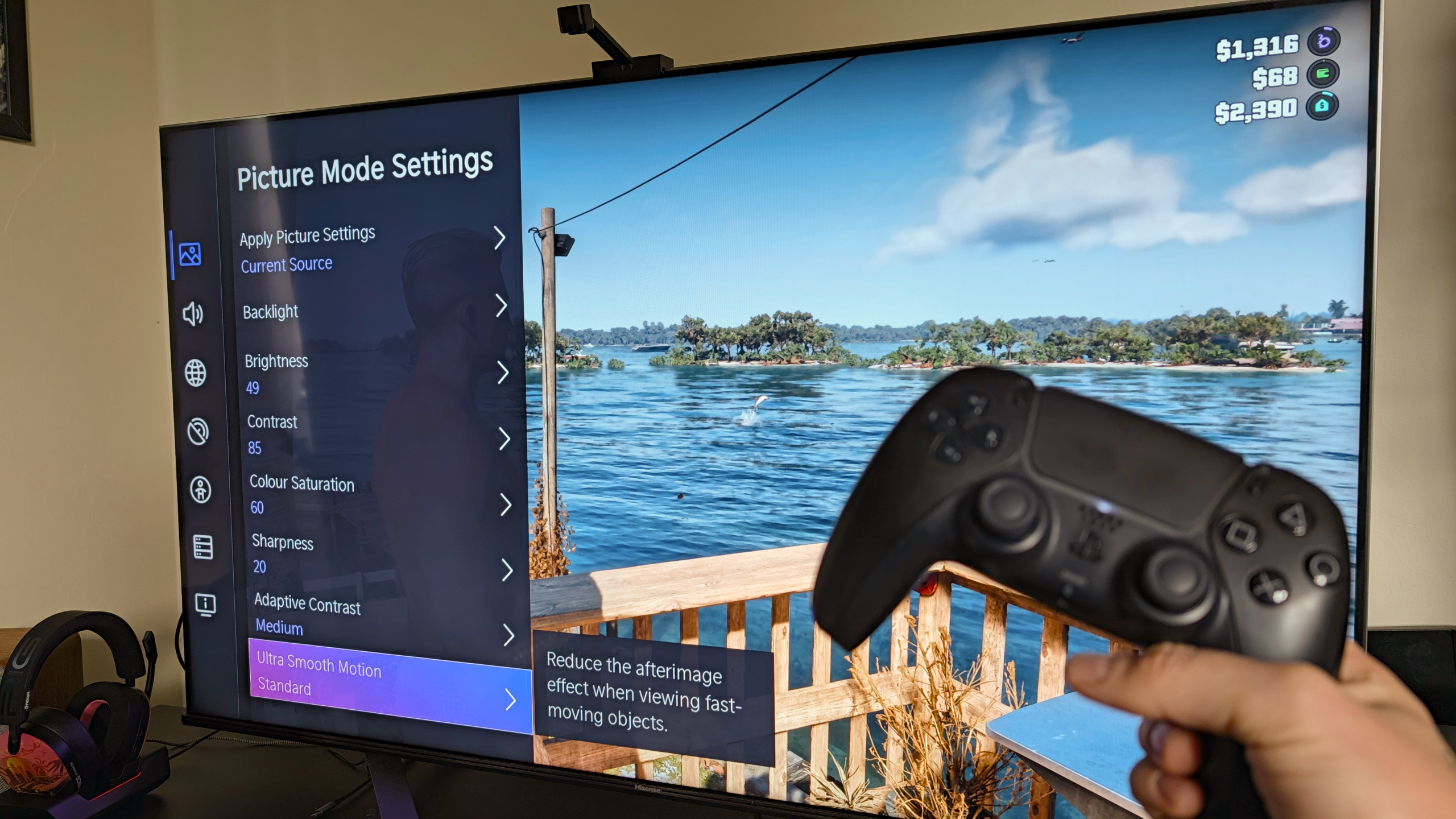
Motion smoothing, the TV feature that interpolates extra frames, is usually switched off by enthusiasts. Yet a growing number of players say it is making GTA 6 easier to play on consoles, where the game is locked to 30 frames per second.
Why the 30 FPS cap feels so rough on GTA 6
Players coming from high-refresh PC gaming often notice the change right away. On a powerful PC, Resident Evil Requiem has been running at up to 214 FPS, so dropping to a strict 30 FPS feels like a major step down in smoothness.
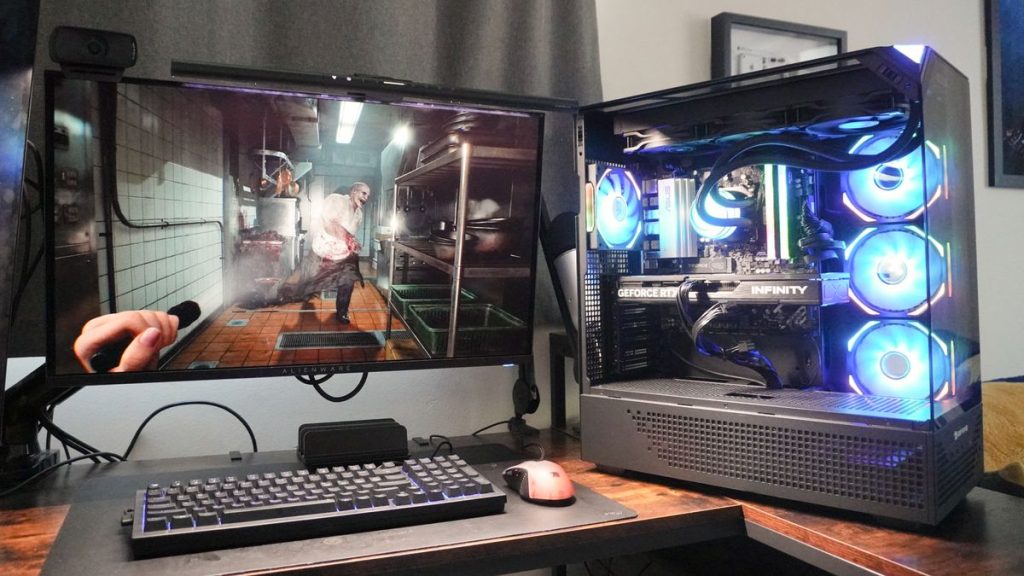
The 30 FPS limit is also not perfectly steady. Testing has shown that GTA 6 on consoles can dip into the mid-20s during heavy scenes, which makes camera pans and fast driving look uneven. Those drops are most noticeable in open-world sections with lots of movement on screen.
How TV motion smoothing works with GTA 6
Motion smoothing, sometimes called motion interpolation, works in a similar way to PC frame generation. The TV’s processor looks at two real frames from the console, estimates what should appear between them, and inserts an artificial frame to smooth out motion.
The effect can be striking in GTA 6. Driving along the coast or panning across a busy street looks noticeably less choppy with the feature on. The result is still far from the frame rate of a high-end PC, but the motion is more fluid than the raw 30 FPS output.
The trade-offs of frame interpolation
Interpolation has clear costs. The TV has to wait for the next real frame before it can create the in-between frame, which adds input lag between a button press and the on-screen response. In fast competitive games, that delay is a serious problem.
Open-world action games are more forgiving. Character movement in Rockstar’s games is already deliberately weighted, so the extra latency is less obvious during driving and exploration. Players who are sensitive to lag should still test the setting before relying on it.
The processor is also guessing, and guesses can show mistakes. Some fast-moving objects can shimmer, and on-screen text such as subtitles can appear to boil. GTA 6 already uses its own resolution scaling, which may make these artifacts more visible.
Settings to check before turning on motion smoothing
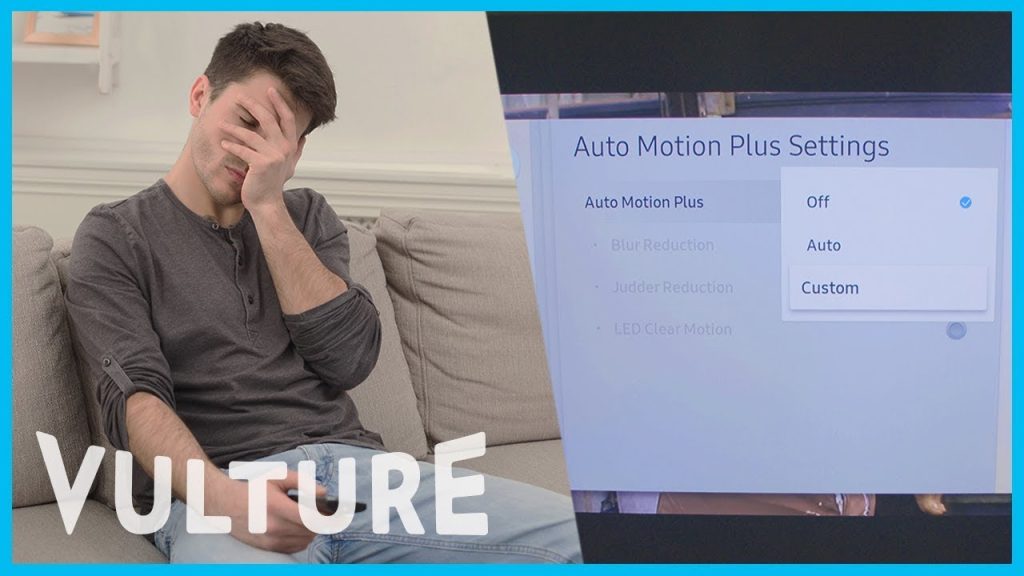
Many TVs disable motion smoothing automatically when Game Mode or Variable Refresh Rate (VRR) is active. On some newer Samsung and LG sets, a dedicated low-latency option such as Game Motion Plus or TruMotion tweaks can keep smoothing available while Game Mode stays on. Other sets require turning off Game Mode or giving up VRR to access the feature.
VRR matters less in this case, because a game locked to 30 FPS does not need it to avoid tearing at higher frame rates. Judder Reduction is another setting to adjust. Setting it around the middle of its range, roughly 5 to 7 out of 10, can soften harsh camera pans without making the image look blurry.

In-game motion blur is a matter of taste. Some OLED owners find that turning off GTA 6‘s built-in blur and letting the TV handle smoothing looks cleaner, since two blur effects can stack on top of each other.
What PC players can expect from GTA 6
The workaround is a compromise rather than a replacement for higher frame rates. PC players will still have the option of running the game at much higher frame rates once a PC version is released. No release date for that version has been confirmed in the material available so far.
Until then, motion smoothing is one of the few tools console players have to reduce the feel of a 30 FPS cap. Testing each TV’s options and keeping the trade-offs in mind is the best way to decide whether the setting is worth using in GTA 6.